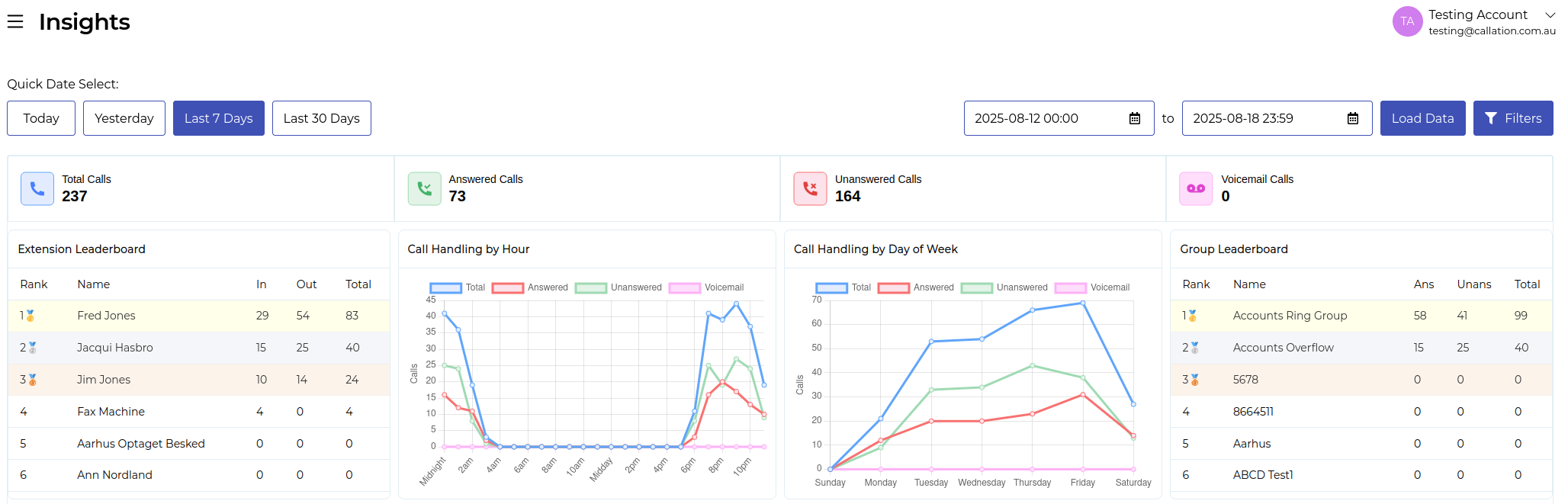
Quick Date Select
This allows you to quickly select common date ranges to pull data from.
Options are Today, Yesterday, Last 7 Days, and Last 30 Days.
On the right side of this row, there are fields that can be used to manually select the date and time to examine data for as an alternative to the quick select options.
Load Data
Pressing the Load Data button will retrieve data for the selected date and time periods.
Any filters pre-selected will automatically be applied when Load Data is clicked.
Filters
The Filters button will expand a sidebar on the right of screen to allow for selection of areas of interest.
Available filters include Locations, Departments, Extensions, Groups, as well as Extension/Group Filters.
When no filters are applied, ALL extensions and groups will be included in the data queried.
If Location and Department filters are used, only extensions matching both selected conditions will be included.
For example, if you chose "New York" and "Tokyo" as the locations, and "Accounts" and the department, only extensions and groups matching both New York or Tokyo as the location and Accounts as the Department would be queried.
When using Extension/Group and Extension/Group Filter options, these will be returned regardless of their associated Location/Department and any Location/Department filters applied.
Templates
The Load Template option will allow for selection of any pre-configured Templates that will automatically select associated filters assigned to that Template.
New Templates can also be created by clicking the "New Template" options.
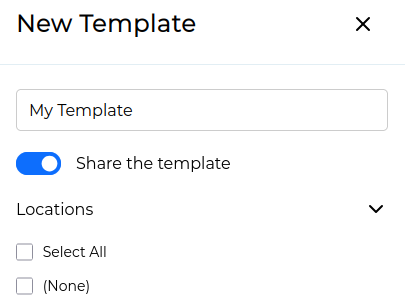
Name the template, and optionally turn On/Off the Shared Template option.
When a template is shared, other users in your organisation will be able to select the same Template. If not shared, it will only be accessible under your user account.
Check any filters that should be added to the Template and Select Save.
Once Saved, the Template will be available in the "Load Templates" drop down box for ease of selection in future.
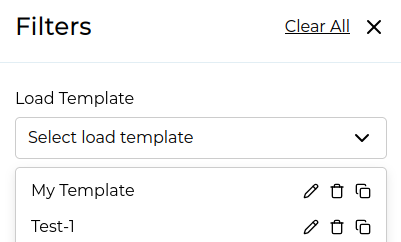
Within the selection dropdown, there are options for Edit, Delete and Copy.
Edit will allow for options within the filter template to be changed.
Delete will delete the configured Template.
Copy will create a copy of the template including any selected options.
Was this article helpful?
That’s Great!
Thank you for your feedback
Sorry! We couldn't be helpful
Thank you for your feedback
Feedback sent
We appreciate your effort and will try to fix the article